

If you reuse one password across your email, your college portal and a shopping site, a single breach anywhere exposes all three. Password managers exist to end that, and setting one up takes about an hour.
The blocker is rarely understanding. It is the fear of putting everything in one place and being locked out. That fear is reasonable, and this guide handles it directly.
What follows is how these tools work, what to check before choosing one, a first-week plan that avoids lockouts, and the habits that make it stick. No product recommendations, because the sensible choice changes and you should compare current options yourself.
What a password manager actually does
A password manager is an encrypted store for your logins. You remember one master password; it remembers everything else.
Three functions do the real work.
- Generation. It creates long random passwords you never have to type or recall.
- Storage. Everything is encrypted before it leaves your device, so the provider holds a locked box, not your passwords.
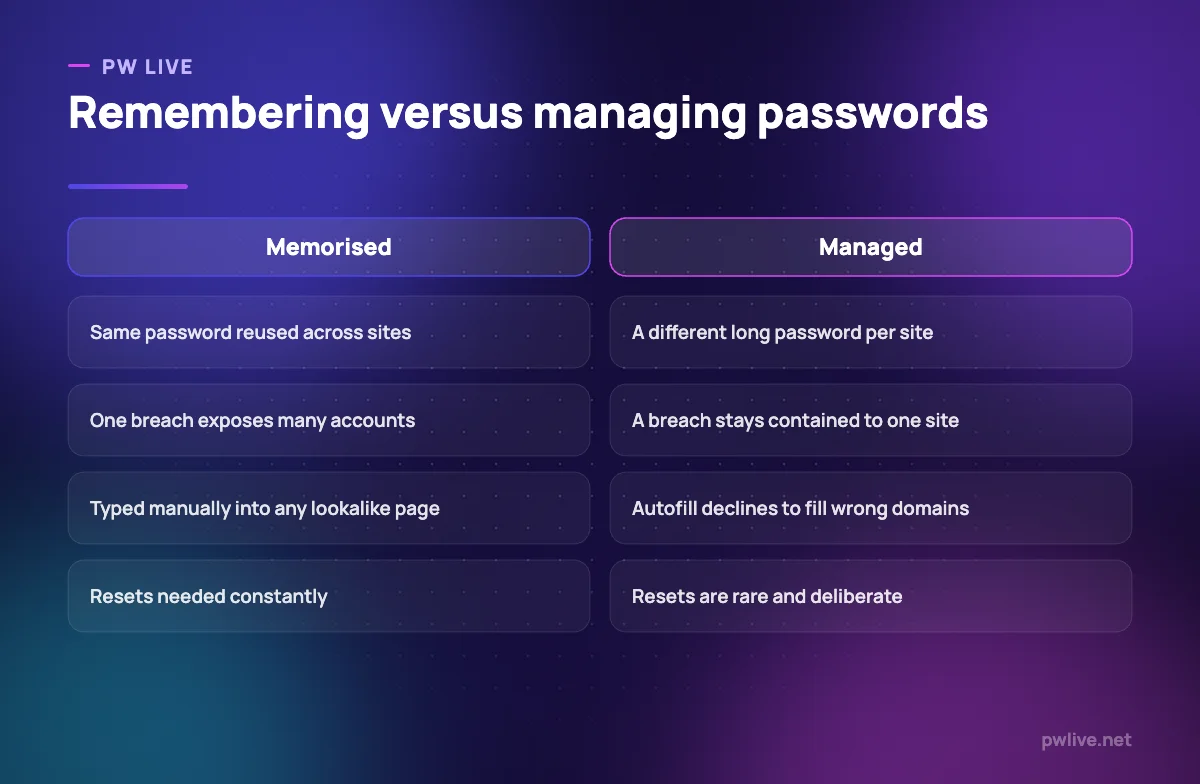
- Autofill. It fills credentials only on the domain they belong to, which quietly defends you against phishing pages that merely look right.
That third point is underrated. A convincing fake login page can fool a person; it cannot fool a domain match. If your manager refuses to autofill, treat that as a warning, not a glitch.
For the wider picture of what you are protecting against, read our guide to passwords, two-factor authentication and phishing.
Why reused passwords fail
Breaches happen to companies, not to you. When a site’s user database leaks, attackers take the email and password pairs and try them everywhere else. This is automated and cheap.
Your defence is simple in principle: no password appears twice. That is impossible to do from memory across dozens of accounts, which is exactly the problem a manager solves.
Clever schemes people invent, such as a base word plus the site name, look unique but are trivially guessable once two of your passwords are seen together.
The types of password manager
They differ mainly in where the encrypted vault lives.
- Browser built-in managers. Already installed, zero setup, decent for casual accounts. Weaker when you switch browsers or need to share access.
- Dedicated cloud managers. The vault syncs across your devices through a provider. Convenient, and the sync is why most people stay with them.
- Local-only or self-hosted managers. The vault file lives on your machine or your own storage. Maximum control, and you carry full responsibility for backing it up.
- Device platform keychains. Built into your phone or computer’s operating system. Smooth within that ecosystem, awkward outside it.
If you split time between a personal phone and a shared or borrowed computer, the sync question matters most. Our explainer on cloud computing basics covers what “the vault is in the cloud” really means.
What to check before you choose one
- Encryption model. Look for a clear statement that encryption and decryption happen on your device, and that the provider cannot read your vault.
- Independent security audits. Published, dated, and by an outside firm.
- Recovery process. Understand exactly what happens if you forget the master password. Some tools have no recovery by design, which is a security feature and a real risk.
- Export. You must be able to export your vault so you are never trapped in one product.
- Platform coverage. Every device and browser you actually use, including any you borrow.
- Two-factor support for the vault itself, plus the ability to store codes if you want them there.
- Breach monitoring, which flags saved logins that appear in known leaks.
Check these against the current documentation rather than any article, and confirm the audit dates yourself.
Set your master password properly
Everything depends on this one string, so give it five minutes of thought.
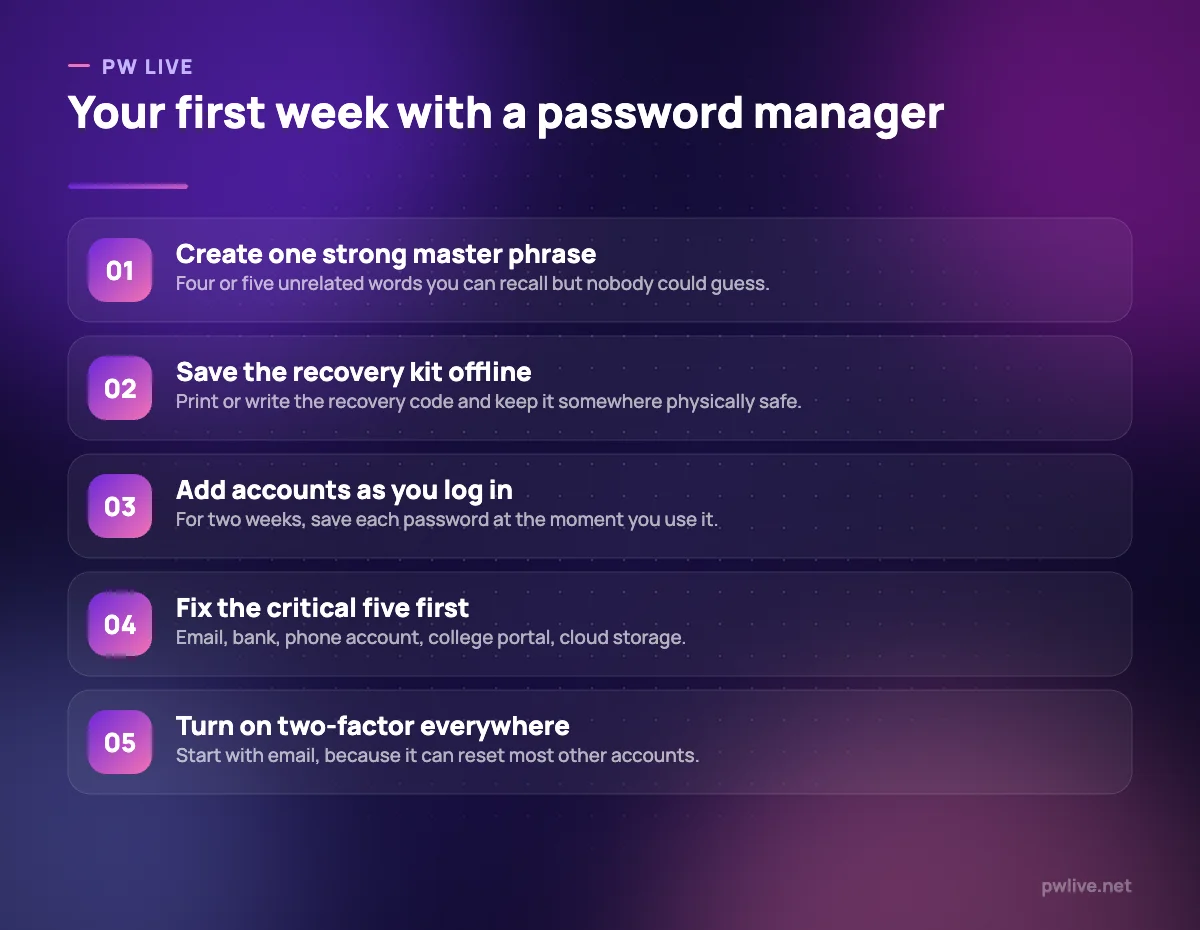
- Use a passphrase: four or five unrelated words, ideally with a number or symbol you will remember.
- Make it long rather than complicated. Length beats punctuation tricks.
- Never reuse it anywhere else, not even on the recovery email.
- Write it down once, on paper, and store it where you keep important documents. Paper in a drawer at home is a reasonable threat model for most students.
- Save the recovery code or kit the same way, in a different place.
Never store the master password inside the vault it opens, and never in a note synced to the same account.
Migrating without locking yourself out
Do not spend a Saturday changing sixty passwords. It ends in confusion and abandoned accounts.
- Install the manager on your phone and your main computer, and sign in on both before anything else.
- Import saved browser passwords if the tool offers it, then delete them from the browser once you have confirmed the import worked.
- For two weeks, let the manager save each login as you use it naturally.
- Change passwords only for the accounts that matter: email first, then bank and payment apps, then your phone or SIM account, then college and cloud storage.
- Turn on two-factor authentication as you go, and store backup codes safely.
- Once things feel stable, use the built-in security check to find remaining reused or weak passwords and fix a few each week.
Email comes first because whoever controls your inbox can reset almost everything else.
Habits worth keeping
- Lock the vault when you step away, especially on shared computers, and never save it on a machine that is not yours.
- Treat autofill refusal as a signal. Check the domain in the address bar before typing anything manually.
- Store more than passwords. Recovery codes, software licences, wifi keys and document numbers all belong in an encrypted vault rather than a plain notes app.
- Keep a backup. Export an encrypted copy periodically if your tool allows it, and store it using the approach in our guide to backing up your notes.
- Share properly. If you run a business or a society, use the tool’s sharing feature instead of sending credentials over chat, a point that matters as more of your work moves online alongside digital payments.
If privacy is your wider concern, what apps collect and how to take control is the natural next read, and more of this ground is covered in our technology category and the productivity skill track.
Key takeaways
- Reused passwords turn one company’s breach into a problem across all your accounts.
- A manager generates, stores and fills unique passwords, and resists lookalike phishing pages.
- Choose on encryption model, audits, recovery process, export and device coverage.
- Make the master password a long passphrase, and keep the recovery kit on paper.
- Migrate gradually over two weeks; fix email, bank and phone accounts first.
- Compare current options yourself rather than trusting any published ranking.
Frequently asked questions
Is it safe to keep all my passwords in one place?
A well-built manager encrypts your vault on your device, so the provider stores unreadable data. The concentrated risk is real but far smaller than the near-certain risk of reusing passwords everywhere.
What happens if I forget my master password?
Many managers cannot recover it, by design. That is why you save a recovery code or kit on paper the day you set up, and store it separately from your devices.
Should I use my browser’s built-in password manager?
It is much better than reusing passwords and fine as a starting point. A dedicated tool usually offers wider device support, sharing and better recovery options.
Do I still need two-factor authentication if I use a password manager?
Yes. Unique passwords stop credential reuse attacks; two-factor stops someone who has obtained the password anyway. Use both, starting with your email account.
Keep learning with PW Live
Browse every guide in Apps & Tools, or pick a skill track and follow the roadmap step by step.





Leave a Reply