

Everyone learns to back up their notes the same way: by losing something. A dead laptop the week before an exam, a phone left in an auto, a file that saved as empty.
It takes about an hour to make that impossible, and almost nothing to maintain afterwards. Most students never do it because backup sounds technical, and because they believe cloud sync already covers them.
It does not, and understanding why is the most useful part of this guide. What follows is a plan you can set up today, using tools you probably already have.
Sync is not backup
Cloud sync mirrors your files across devices. That is genuinely useful, and it is not a backup.
The difference is what happens to mistakes. Sync copies them faithfully.
- Delete a notebook on your phone and it disappears everywhere within seconds.
- Overwrite twelve pages with a blank document and the blank version is now the version.
- If an account is compromised or suspended, every synced device loses access at once.
A real backup is a separate copy that does not change when the original does. It survives deletion, corruption and your own bad afternoon.
Version history closes part of this gap, and you should turn it on everywhere it exists. It is still not sufficient on its own, because it usually lives inside the same account that might fail.
The 3-2-1 rule, translated for students
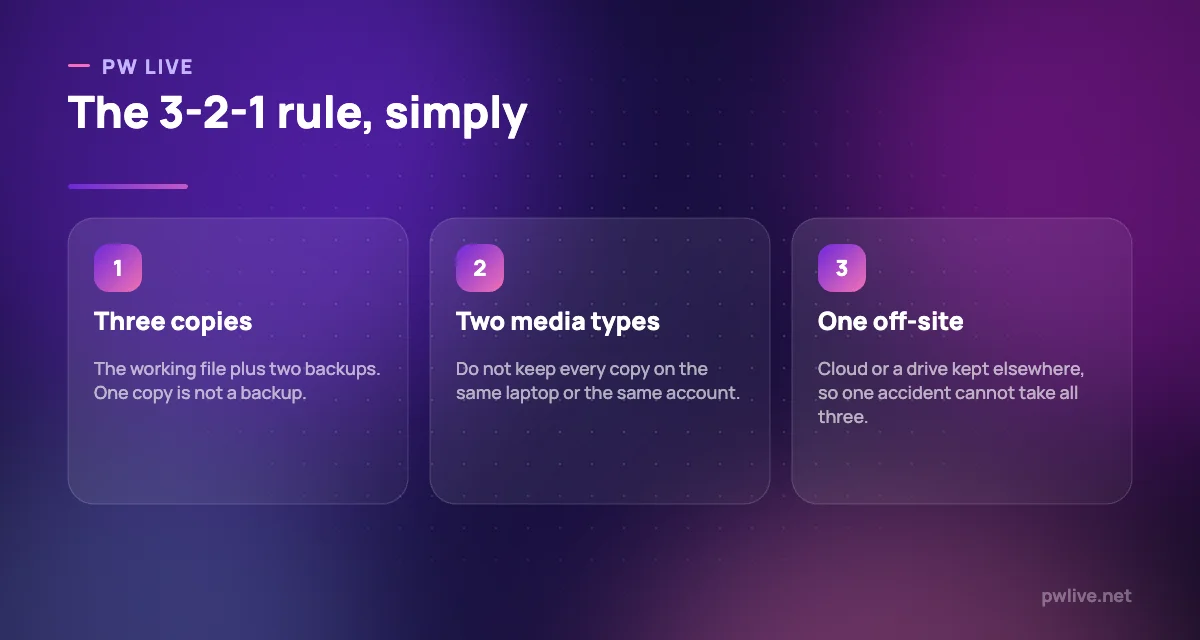
The standard rule is three copies, on two types of storage, with one kept somewhere else. In practice, for a student, that looks like this:
- The working copy on your laptop or phone, where you actually study.
- A cloud copy, synced automatically so you never have to remember it.
- An offline copy on an external drive, a spare laptop or a second cloud account, updated monthly.
That third copy is the one people skip, and it is the one that saves you when an account is locked, a sync goes wrong or a file is corrupted months before you notice.
Our explainer on cloud computing basics covers what actually happens to files you store online, which is worth understanding before you trust it with a year of work.
Put everything in one place first
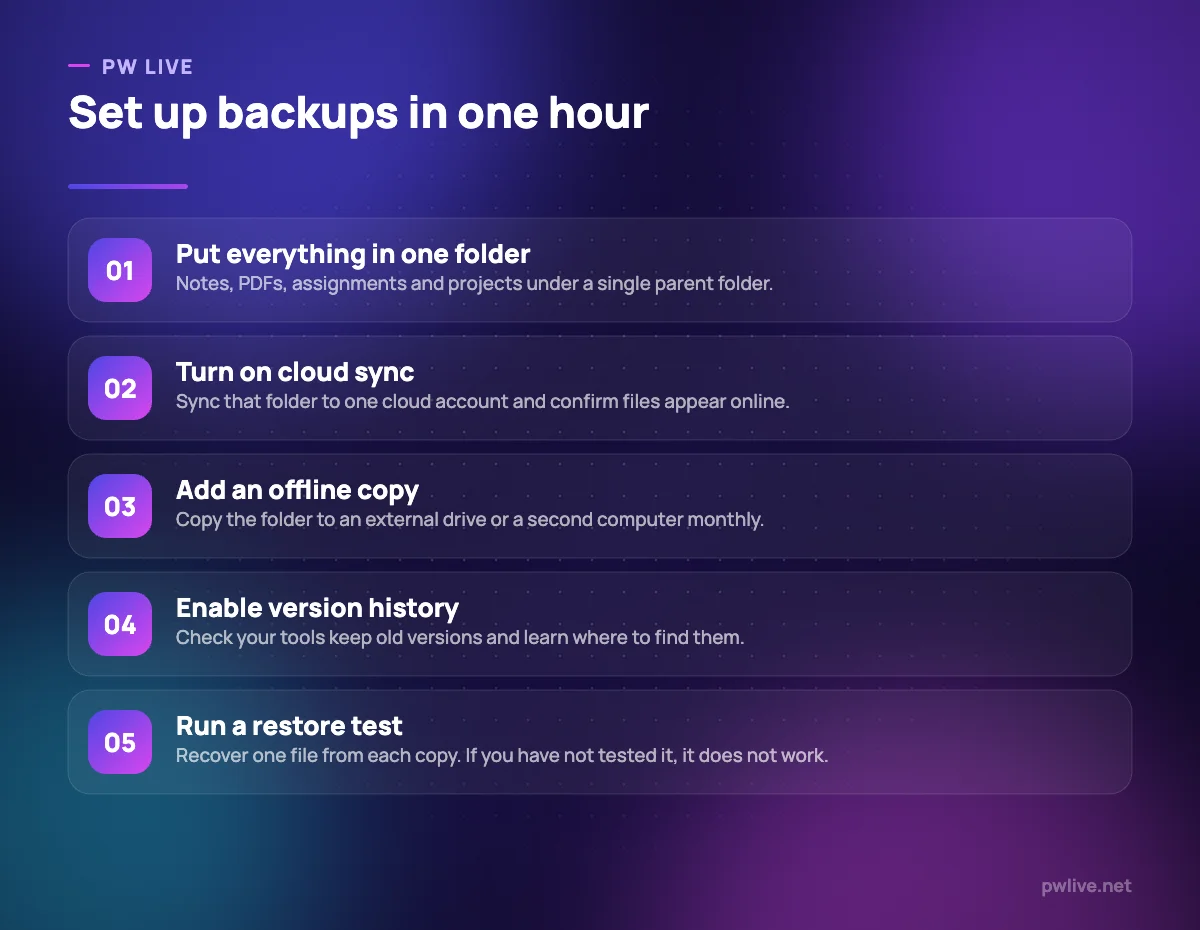
Backup is easy when there is one folder to protect and impossible when your work is spread across six apps.
Spend twenty minutes consolidating:
- Create one parent folder, for example
study, with subfolders per subject or per term. - Move assignments, PDFs, project files, scanned handwritten notes and slide decks into it.
- Export from any app that stores notes only inside itself, and drop the export in the same folder. Do this monthly, since exports are the only way that content is really yours.
- Photograph paper notebooks and put the images in the same structure. Paper burns, floods and gets left behind.
Consistent file names make everything after this easier. Our guides to note-taking apps and taking notes you will actually revise cover how to structure the contents.
Turn on automatic backup for each type of thing
Different content needs different handling.
- Documents and PDFs. Cloud sync on the parent folder, plus a monthly copy to an external drive.
- App-locked notes. Schedule a monthly export to PDF or markdown into the parent folder.
- Phone photos of notes and whiteboards. Turn on automatic photo backup, then move the study ones into your folder so they are not buried among everything else.
- Code and projects. Use version control with a remote copy. It is a backup and a history at the same time.
- Passwords and recovery codes. These belong in an encrypted vault, not a text file. See our guide to password managers.
Set anything that can be automatic to automatic. Any backup that depends on you remembering will lapse during exactly the busy week you most need it.
Test the restore, because untested backups fail
This is the step that separates people who have a backup from people who think they do.
Once a term, do this:
- Pick one file you would hate to lose.
- Restore it from the cloud copy. Open it and check it is complete, not a zero-byte placeholder.
- Restore a second file from the offline copy.
- Check that an exported note file actually opens in something other than the app that made it.
- Confirm you know how to reach your version history, before you need it in a panic.
Silent failure is common. Sync clients sit paused for weeks, external drives develop faults, and exports quietly stop including attachments. You only discover any of this by testing.
Protect against the other ways work disappears
Hardware failure is not the only risk.
- Account lockout. Keep recovery codes and a recovery email you can still access, and do not host every copy under one account.
- Ransomware and malware. An offline copy that is not permanently connected is your defence, because anything mounted can be encrypted.
- Theft. Encrypt your laptop and phone. It costs nothing and turns a stolen device into a hardware loss rather than a privacy incident. Our digital privacy guide covers the wider settings.
- Accidental sharing. Check folder permissions occasionally, especially on group project folders you set up months ago.
- App shutdown. Any note tool can change terms or close. Regular exports mean this is an annoyance, not a catastrophe.
Keep it running with a five-minute monthly habit
Attach it to something you already do, such as your monthly review.
- Confirm the sync client is running and shows a recent completed sync.
- Plug in the external drive and copy the parent folder across.
- Export from any app that holds notes internally.
- Delete one folder of genuine rubbish, so the archive stays usable.
- Once a term, run the restore test above.
Five minutes a month, and losing a laptop becomes a hardware problem rather than an academic one. That resilience matters most for irreplaceable material like a formula and revision notebook built over a whole year.
More guides on setting up your digital life sit in the technology category and the productivity skill track. Compare current cloud and backup options yourself, since storage tiers and pricing shift regularly.
Key takeaways
- Sync is not backup, because it copies deletions and mistakes just as faithfully.
- Keep three copies, on two kinds of storage, with one somewhere else entirely.
- Consolidate everything into one parent folder before automating anything.
- Export monthly from any app that keeps your notes locked inside it.
- Test a restore once a term; untested backups fail silently and often.
- A five-minute monthly habit is the entire ongoing cost.
Frequently asked questions
Is cloud storage enough on its own to back up my notes?
No. Cloud sync protects against a lost device but not against deletion, corruption or losing account access. Add one offline copy that is not connected all the time.
How often should I back up my study notes?
Continuous cloud sync plus one manual offline copy each month suits most students. Increase the frequency during project or exam periods when you produce work daily.
What should I do if I have already lost a file?
Check the app’s trash, the cloud service’s deleted items and any version history before doing anything else. Many services keep deleted files recoverable for a limited window, so act quickly.
Do I need to back up handwritten notes?
Yes. Photograph or scan them into the same folder as everything else, ideally weekly, so a lost notebook does not take a term of work with it.
Keep learning with PW Live
Browse every guide in Apps & Tools, or pick a skill track and follow the roadmap step by step.





Leave a Reply