
Online account security is not about becoming a security expert. It is about closing the handful of doors that attackers actually walk through, which is a much smaller job than it sounds.
Most account takeovers do not involve anyone breaking encryption. They involve a password reused from a site that got breached, or a person clicking a convincing link and typing their details into a fake page. Both are preventable with an afternoon of setup.
This guide is defensive only. It covers what to change, in what order, and how to recognise the messages designed to catch you.
Why one weak password puts everything at risk
When a website suffers a data breach, the stolen list of email addresses and passwords ends up circulating. Attackers then take those pairs and try them, automatically, on hundreds of other sites: email, banking, shopping, social media.
This is why reuse is the single biggest risk. A forgotten account on a site you used once in college can hand over the password to your main email.
And your main email is the master key. Anyone with access to it can trigger a password reset on almost every other service you own. If you fix nothing else, fix that account.
- Your email gets a password used nowhere else, ever.
- Your email gets two-factor authentication.
- Your email recovery phone number and backup address are current and yours.
Build a password system you can actually keep
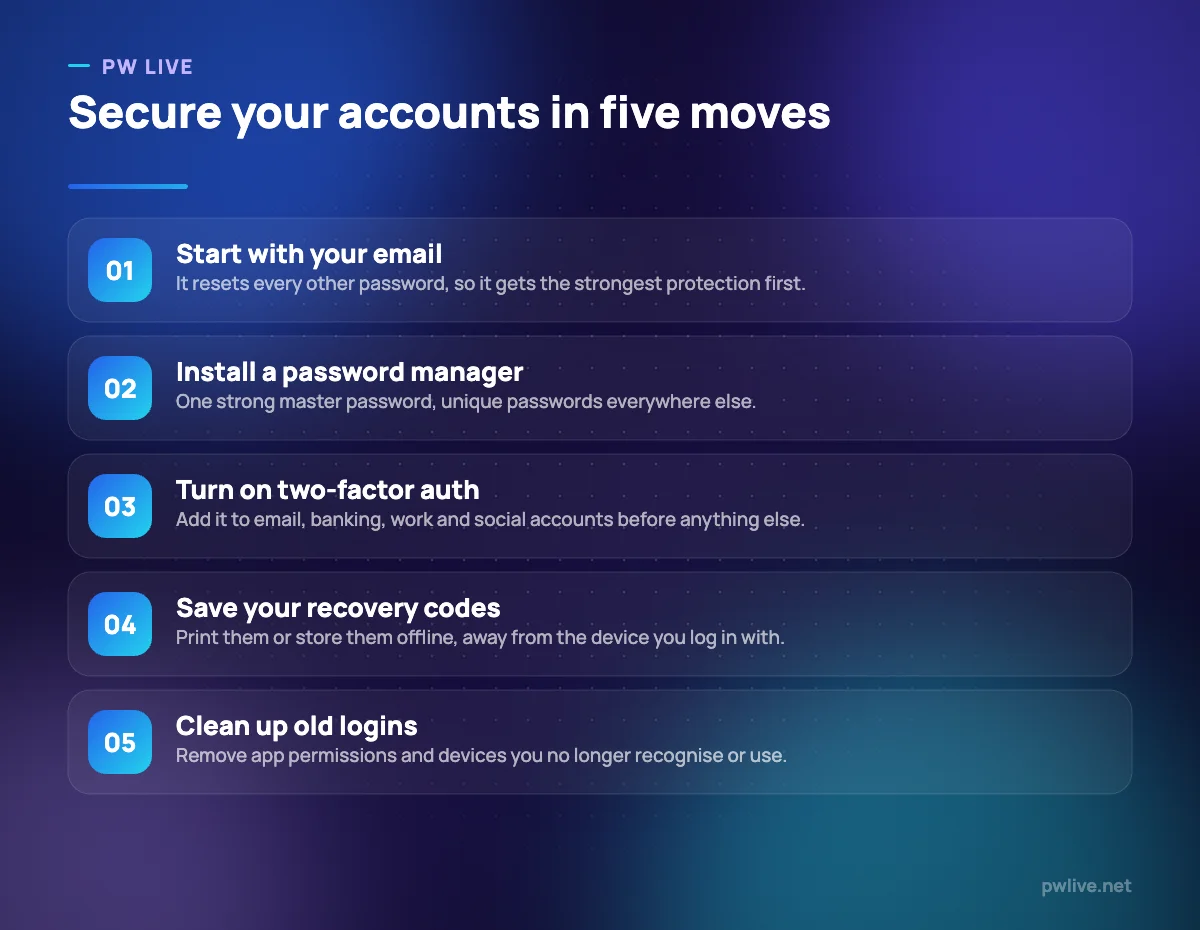
Advice to memorise long random strings fails because humans do not work that way. Use a system instead.
Length beats complexity. A password made of four or five unrelated words is far harder to crack than a short one with symbols substituted for letters, and it is much easier to type. Substituting a zero for an O fools nobody and no software.
Uniqueness beats strength. A moderately strong password used on one site only is safer than a very strong one used on twenty.
You need to remember exactly two. One for your device, one for your password manager. Everything else can be random, because you will never type it manually.
Change a password when a service reports a breach, when you have shared it with someone, or when you suspect something is wrong. Rotating every password every ninety days for no reason just pushes people towards predictable patterns.
Password managers, and how to start without the overwhelm
A password manager stores your logins in an encrypted vault, fills them in for you, and generates a new random password whenever you sign up for something. It is the single highest-value tool in this article.
The quiet extra benefit: because the manager fills credentials based on the actual web address, it simply will not autofill on a lookalike phishing site. That mismatch is a warning you get for free.
Do not try to migrate two hundred accounts on day one. Instead:
- Set it up and add your email account.
- Add your bank, your college or work login, and your main social accounts.
- After that, add each account as you next log in to it naturally.
Within a month the important ones are done. What to look for when choosing one is covered in our guide to password managers and how to start using them.
Write your master password on paper and store it somewhere physically safe. This feels wrong and is correct: a vault you cannot open is as bad as one that gets breached.
Two-factor authentication, from weakest to strongest
Two-factor authentication means logging in needs something you know and something you have. Even if a password leaks, the account holds.
Ranked from least to most protective:
- SMS codes. Better than nothing and widely available. The weakness is that phone numbers can be moved to another SIM through the mobile operator.
- Authenticator apps. A six-digit code generated on your device, refreshing every thirty seconds. No phone signal needed, no number to hijack. A good default for most accounts.
- Passkeys. A cryptographic key stored on your device and unlocked with your fingerprint, face or device PIN. There is no code to read out and nothing to type into a fake page.
- Hardware security keys. A small physical device you plug in or tap. The strongest option and the usual choice for administrators.
Turn it on for email, banking, work accounts and anything holding personal information. When you enable it, the service gives you a set of recovery codes. Save them somewhere offline. Losing your phone with no recovery codes is the most common way people lock themselves out permanently.
One rule that never has an exception: nobody legitimate will ever ask you to read out a one-time code. Not your bank, not a delivery agent, not customer support, not a buyer on a marketplace.
How to recognise a phishing attempt
Phishing works on attention, not intelligence. The messages are designed to catch you while you are distracted, and they are far better written than they used to be.
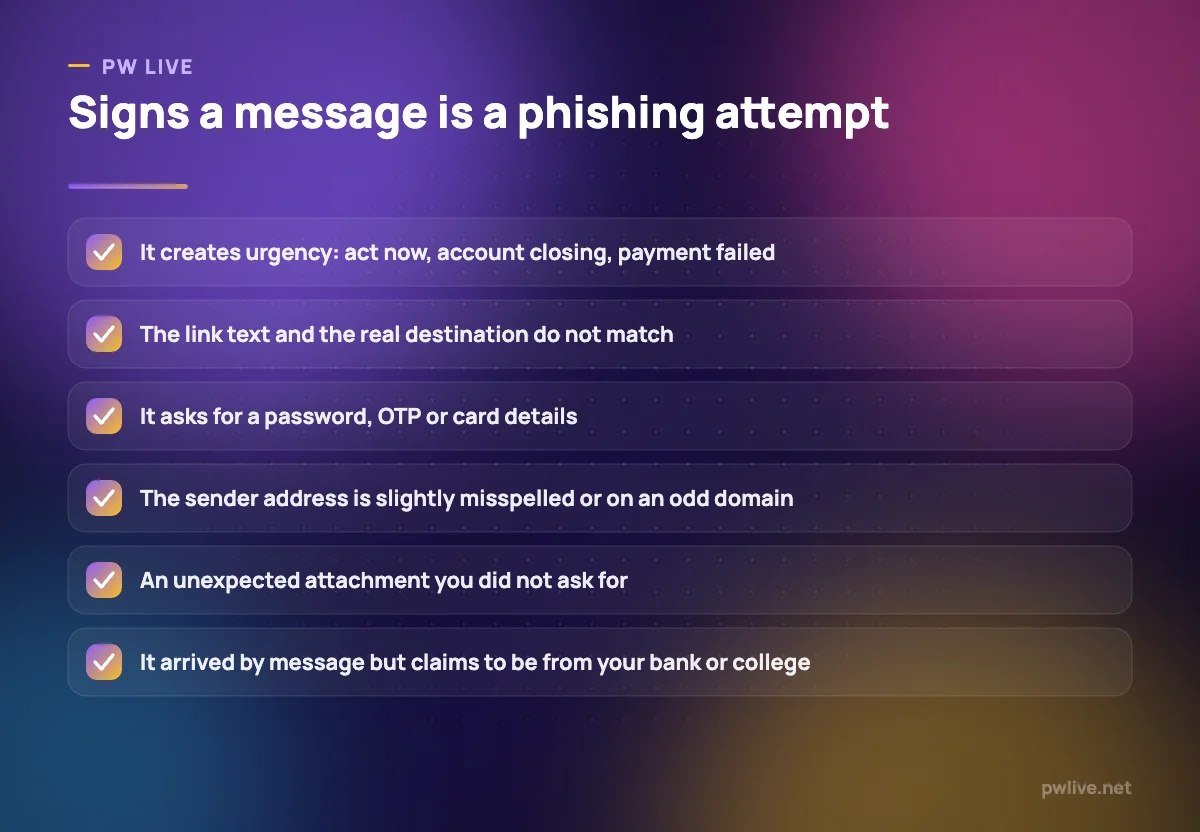
The reliable signals are structural rather than about spelling:
- Manufactured urgency. Your account will be closed, your payment failed, your result is being withheld. Panic shortens thinking.
- A link that does not match its text. Hover on a computer, long-press on a phone, and read the real destination before tapping.
- A request for credentials. Real organisations do not email you asking for your password or OTP.
- A near-miss sender address. One extra letter, a hyphen, a different domain ending.
- Unexpected attachments, especially documents that ask you to enable something to view them.
Students see targeted versions of this: fake exam result portals, fake scholarship forms, fake fee-payment reminders. The instinct to check that we describe in how to spot misinformation about exams and admissions applies directly here.
The habit that beats all of it: never act from the link in the message. If your bank appears to have written to you, open the bank’s app yourself. If your college has sent a notice, go to the official site by typing the address. Verifying through a channel you already trust costs thirty seconds and defeats nearly every attempt.
What to do in the first hour after something goes wrong
If you have typed a password into a page you now doubt, or clicked something you should not have, move quickly and in this order.
- Change the password on that account, from a different device if you can.
- Change your email password if there is any chance it was reused or exposed.
- Check active sessions and devices in the account’s security settings, and sign out anything you do not recognise.
- Review recovery settings. Attackers commonly add their own phone number or backup email so they can get back in later.
- Look for new forwarding or filter rules in your email. A quiet rule that copies your mail elsewhere is a classic follow-up move.
- Tell your bank immediately if any financial detail was involved, and report it through the official channels rather than a number from the message.
Do this even if you are not sure. The cost of acting unnecessarily is ten minutes.
The accounts that deserve extra attention
Not everything needs the same level of protection. Rank your accounts and spend your effort accordingly.
Tier one: primary email, bank and payment apps, phone account with your mobile operator, password manager. Strongest available two-factor method, unique passwords, recovery codes stored offline.
Tier two: work or college accounts, cloud storage, social media, anything with your address or documents saved. Authenticator app at minimum.
Tier three: shopping sites, forums, one-off signups. Unique password from the manager, and that is enough.
While you are in there, remove third-party apps you no longer use from your account permissions. Old connected apps keep whatever access you granted them years ago. The same clean-up applies to app permissions on your phone, which our digital privacy guide covers in detail. For businesses, the same discipline extends to cloud computing basics, where a single admin account often controls everything.
More practical tooling guides sit in the apps and tools section, and building this into your routine fits naturally with the productivity skill track.
Key takeaways
- Your primary email is the master key. Secure it first and best.
- Unique passwords matter more than clever ones. Length beats symbol substitution.
- A password manager removes the memory problem and quietly blocks lookalike sites.
- Prefer an authenticator app, passkey or hardware key over SMS codes where offered.
- Save your recovery codes offline the moment you enable two-factor authentication.
- Never act on a link in an unexpected message. Open the app or type the address yourself.
Frequently asked questions
Is it safe to keep all my passwords in one app?
Yes, and it is safer than the realistic alternative of reusing passwords. The vault is encrypted so the provider cannot read it, and the risk of one well-protected vault is lower than the risk of the same password sitting in dozens of breached databases.
What if I lose the phone with my authenticator app?
This is what recovery codes are for, which is why you save them when you set up two-factor authentication. Many authenticator apps also offer an encrypted backup you can restore onto a new device.
Should I write passwords in a notebook?
For your master password and recovery codes, a piece of paper in a safe place at home is reasonable, because a burglar is a far less likely threat than a data breach. For everyday accounts, use a password manager instead.
How do I know if my details have appeared in a breach?
Reputable breach-notification services let you check an email address, and many password managers and browsers now flag compromised credentials automatically. If a password shows up, change it everywhere you used it.
Keep learning with PW Live
Browse every guide in Technology & Software, or pick a skill track and follow the roadmap step by step.

Leave a Reply