

Knowing how to choose a laptop is mostly about resisting the spec sheet. Shops and listings push processor numbers and headline figures, when the parts that decide whether you enjoy the machine are the screen, the keyboard and the battery.
The right approach is to start from the work. A student writing assignments and watching lectures needs a very different machine from someone compiling code all day or editing large image files.
This guide walks through each component, what it actually affects, and how to match a machine to studying, coding or design. No models, no prices, just the reasoning you can apply to whatever is available when you buy.
Start with the work, not the components
Write down what you will genuinely do on this machine for the next three or four years. Be honest: aspirational use cases are how people overspend.
Sort your answers into three buckets.
- Light work. Documents, browsing, video lectures, presentations, email, note-taking, online classes.
- Medium work. Coding and running local development tools, large spreadsheets, many browser tabs, light photo editing, statistical work on modest datasets.
- Heavy work. Video editing, 3D rendering, large design files, training machine learning models locally, demanding games.
Most students are in the first bucket with occasional trips into the second. Buying for the third bucket “just in case” costs money and battery life you will feel every day for something you may do twice a year.
The second question: where will you use it? A machine that lives on a desk can be heavier and hotter. A machine that goes to campus daily is judged mainly on weight and battery.
Processor: what actually matters
The processor is the part people obsess over and understand least. Three things matter, in this order.
Core count and type. More cores help when you run several demanding things at once, which is exactly what compiling code or exporting video looks like. For writing and browsing, extra cores sit idle.
Efficiency and heat. A chip that does the same work using less power gives you longer battery and a quieter, cooler machine. This is often a bigger real-world improvement than a small gain in peak speed.
Generation over tier. A newer mid-range chip frequently beats an older high-end one, and costs less. Check which generation you are being sold, because older stock lingers on shelves.
Ignore clock speed as a headline number. It only compares meaningfully within the same chip family. And treat “up to” boost figures with suspicion: a thin laptop cannot sustain its peak speed for long because it cannot get rid of the heat.
For light and medium work, a current mid-range processor is genuinely enough. Money saved here is better spent on memory.
Memory and storage: the two upgrades you will feel
If you only have budget for one improvement, make it memory.
RAM is your working space. When you run out, the system starts shuffling data to storage, and everything becomes sluggish. This is the single most common cause of a laptop feeling slow. Browser tabs, a code editor with its background processes, a video call and a document open together add up quickly.
Two rules: buy more than you think you need, and check whether it can be upgraded later. Many thin laptops solder the memory to the board, which means the amount you buy is the amount you have forever.
Storage has two dimensions. The type matters enormously: a solid-state drive makes a machine feel fast in a way no processor upgrade can match. Anything with a spinning mechanical drive as its main storage will feel slow from day one, regardless of other specifications.
Capacity matters less than people assume, because cloud storage covers documents well. Design and video work is the exception, since large files are painful to work on over a network. If you are relying on cloud sync, make sure you understand the difference between syncing and backup, which our guide to backing up your notes explains.
Screen, keyboard and the parts you touch all day
These get skipped in comparisons and then dominate your daily experience.
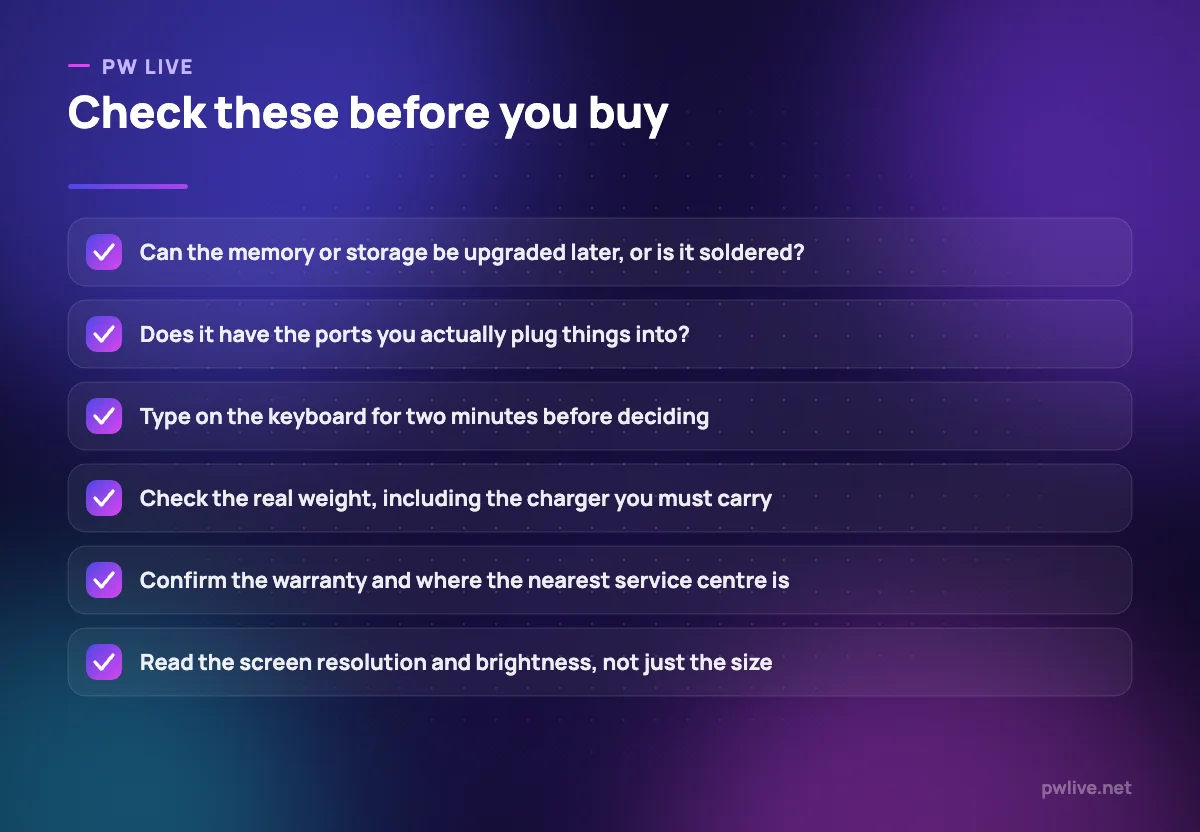
Screen. Resolution matters more than size for text clarity. Brightness matters if you ever work near a window or outdoors. Matte finishes reduce reflections; glossy ones look punchier indoors. For long study sessions, a comfortable screen reduces the eye strain we cover in screen fatigue and how to protect your focus.
For design work, colour accuracy is the specification that matters, and it is usually described by how much of a colour standard the display covers. A screen that shows colours inaccurately will have you correcting work that was fine.
Keyboard. Type on it before you buy if at all possible. Key travel, spacing and layout vary hugely, and you cannot change it later. If you write essays or code for hours, this is not a minor preference.
Trackpad. A bad trackpad is a daily irritation. Size, smoothness and reliable gestures make a real difference, especially if you work away from a desk.
Build. A flexing chassis and a wobbly hinge are the parts that fail first on a machine carried in a bag every day.
Battery, weight and the reality of carrying it
Claimed battery figures come from gentle test conditions. Assume real-world life will be meaningfully shorter once you have a bright screen, a video call and a dozen tabs running.
Judge battery by two things: the stated capacity, and how efficient the processor and screen are. A large battery paired with a power-hungry chip is not an improvement.
Weight is the specification students underestimate most. The difference between a light machine and a heavy one is the difference between carrying it every day and leaving it at home. Remember to add the charger, which can be surprisingly heavy on machines with powerful processors.
If you mostly work at a fixed desk, a heavier machine with a bigger screen is a reasonable trade. Our guide to setting up a study space in a small or shared home covers making that desk work, and studying without back, neck and wrist pain explains why an external keyboard and a raised screen matter more than the laptop you chose.
Graphics: who actually needs a dedicated card
Most laptops use integrated graphics built into the processor. Modern integrated graphics handle video playback, multiple displays, general design work and light editing without complaint.
A separate graphics card is genuinely useful for: 3D modelling and rendering, serious video editing, demanding games, and training machine learning models on your own machine rather than in the cloud.
It costs you in three ways: price, battery life, and heat with the fan noise that follows. If you do not need it, you are paying for a component that makes your everyday experience slightly worse.
If you are unsure, remember that heavy compute work is increasingly rented rather than owned. Running an occasional demanding job on a cloud machine is often cheaper than carrying a hot, expensive laptop every day, as our guide to cloud computing basics explains.
Ports, repairability and how long it will last
Count what you actually plug in: a monitor at the library, a projector for presentations, an external drive, a wired mouse, a card reader. Then check the machine has those ports, or budget for an adapter you will inevitably forget.
Repairability is worth thirty seconds of research. Ask three questions: can the battery be replaced, can memory and storage be upgraded, and is there a service centre reachable from where you live? A laptop that cannot be repaired locally is effectively disposable.
Also consider how long the software will be supported. A machine that stops receiving security updates is a liability, particularly if you use it for banking or work. Keeping it protected is part of the wider hygiene covered in how to keep your accounts safe.
Matching the machine to the work
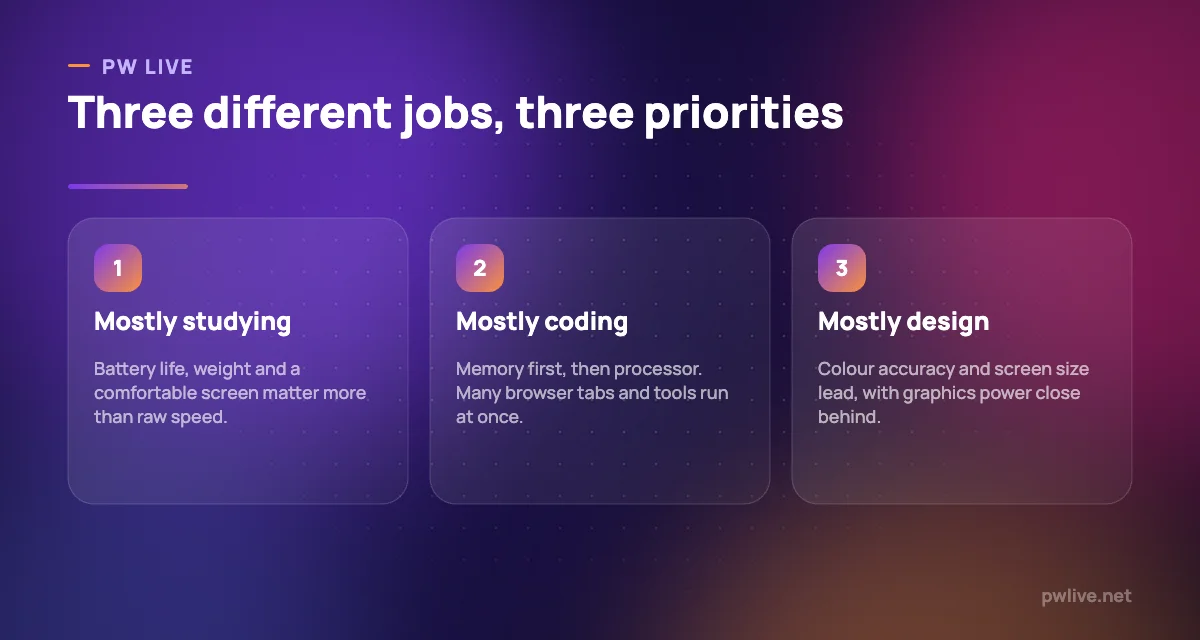
For studying. Prioritise battery, weight and screen comfort. A mid-range processor with generous memory and a solid-state drive covers everything. Do not pay for a dedicated graphics card.
For coding. Memory first, then processor cores. A good keyboard is not optional if you type for hours. Screen space matters, so consider whether you will add an external monitor. Check that the operating system suits your stack before you commit.
For design. Colour accuracy and screen size lead. Fast local storage matters because file sizes are large. A dedicated graphics card helps for 3D and video, less so for layout and illustration.
Buying second-hand is reasonable if you check the battery health, confirm the storage type, and can inspect the screen and keyboard in person. A well-kept older business laptop often beats a new budget machine.
For more tooling guidance, browse the apps and tools section, and if this purchase is a real financial decision, personal finance for students covers planning for it. If the laptop is for learning to build software, the coding and programming track will tell you what your setup actually needs.
Key takeaways
- Decide what work you will genuinely do, then buy for that, not for a hypothetical future.
- Memory is the upgrade you feel most. Check whether it can be added later.
- A solid-state drive is non-negotiable; a mechanical main drive will feel slow forever.
- Screen, keyboard and trackpad shape your daily experience more than processor tier.
- Skip the dedicated graphics card unless you do 3D, video or gaming work.
- Check ports, repairability and local service access before you commit.
Frequently asked questions
How much memory do I actually need?
Enough that you never run out during your normal workload, which means more if you keep many browser tabs and development tools open at once. Since memory is often soldered and cannot be added later, err upwards rather than planning to upgrade.
Is a touchscreen worth it?
It is useful if you annotate PDFs, sketch diagrams or take handwritten notes, particularly with a stylus. For typing and reading it adds weight, cost and a glossier screen without much benefit.
Should I buy a laptop or a tablet with a keyboard?
A tablet suits reading, annotating and note-taking well but struggles with development tools and heavy multitasking. If your work involves coding or serious file management, choose a laptop.
How long should a laptop last?
Aim to plan for several years of use, and expect the battery to weaken well before the rest of the machine. Choosing a model with a replaceable battery and available local service extends its useful life considerably.
Keep learning with PW Live
Browse every guide in Technology & Software, or pick a skill track and follow the roadmap step by step.




Leave a Reply