

Assignments, seminar slides, a society poster, an invoice: every one of them needs a different kind of file, and picking the wrong free tools for presentations and documents costs you an evening in rework.
The good news is that you almost certainly do not need to pay for anything. Between office suites, browser-based design tools and open-source software, the free layer covers everything a student or a small business normally produces.
This guide does not rank products or list prices, because both change. It covers the families of tool, which job each is built for, what to check before you commit, and the habits that stop a file breaking on the day it matters.
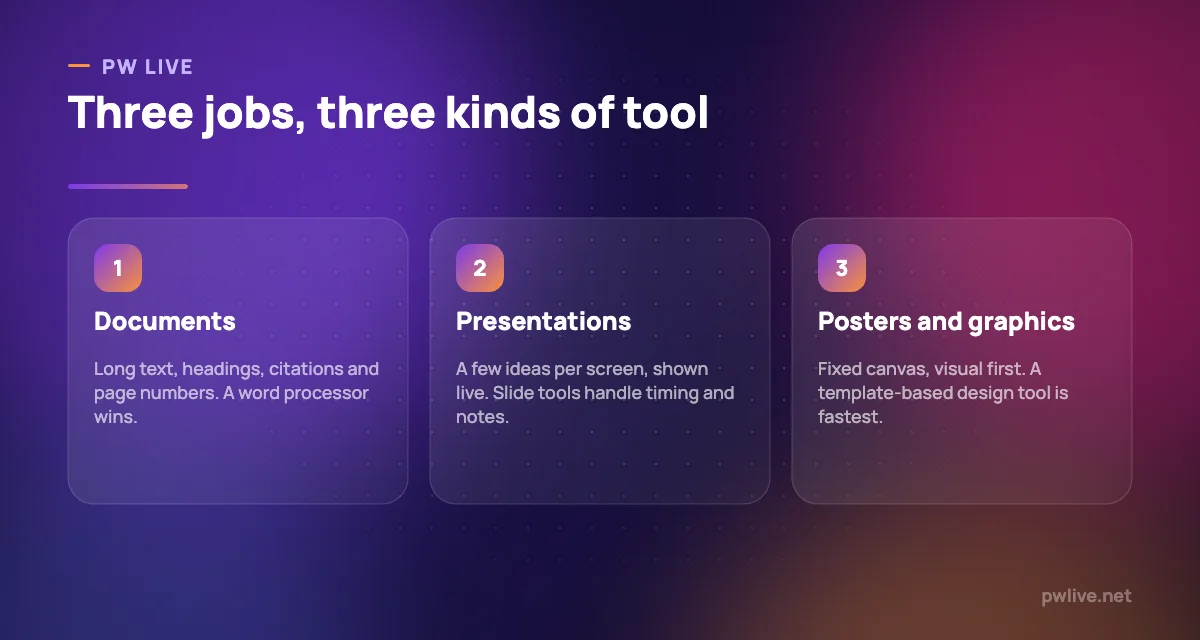
Start by naming the output, not the tool
Three questions decide everything.
- Who reads it, and on what? A phone, a projector, a printed A1 sheet and a marker’s laptop are four different design problems.
- Is it fixed or flowing? Posters and slides have fixed canvases. Reports flow across pages that reflow when you edit.
- What is the final file? Almost always PDF. Design backwards from that.
If the answer is “a long text document with headings and references”, a word processor is the right family and a design tool will fight you. If the answer is “one A2 sheet with three images”, the reverse is true.
The families of free tool worth knowing
- Cloud office suites. Documents, slides and sheets in a browser, with sharing and version history built in. Best default for coursework and group projects.
- Installed office suites, including open-source ones. Better for very long documents, offline work and older hardware. Worth knowing about if your laptop struggles, as our guide to choosing a laptop explains.
- Template-based design tools. Browser tools with ready-made poster, certificate and social layouts. Fastest route to something that looks deliberate.
- Typesetting systems. Markup-based tools used for theses, maths-heavy reports and journal formatting. A steeper start, but unbeaten for equations and long structured documents.
- Plain markdown plus a converter. Write in text, generate a PDF. Fast, portable and version-friendly if you already write in markdown.
Open-source software is disproportionately strong in this space, and it usually means no account, no upload and no surprise limits.
What to check before you commit to a tool
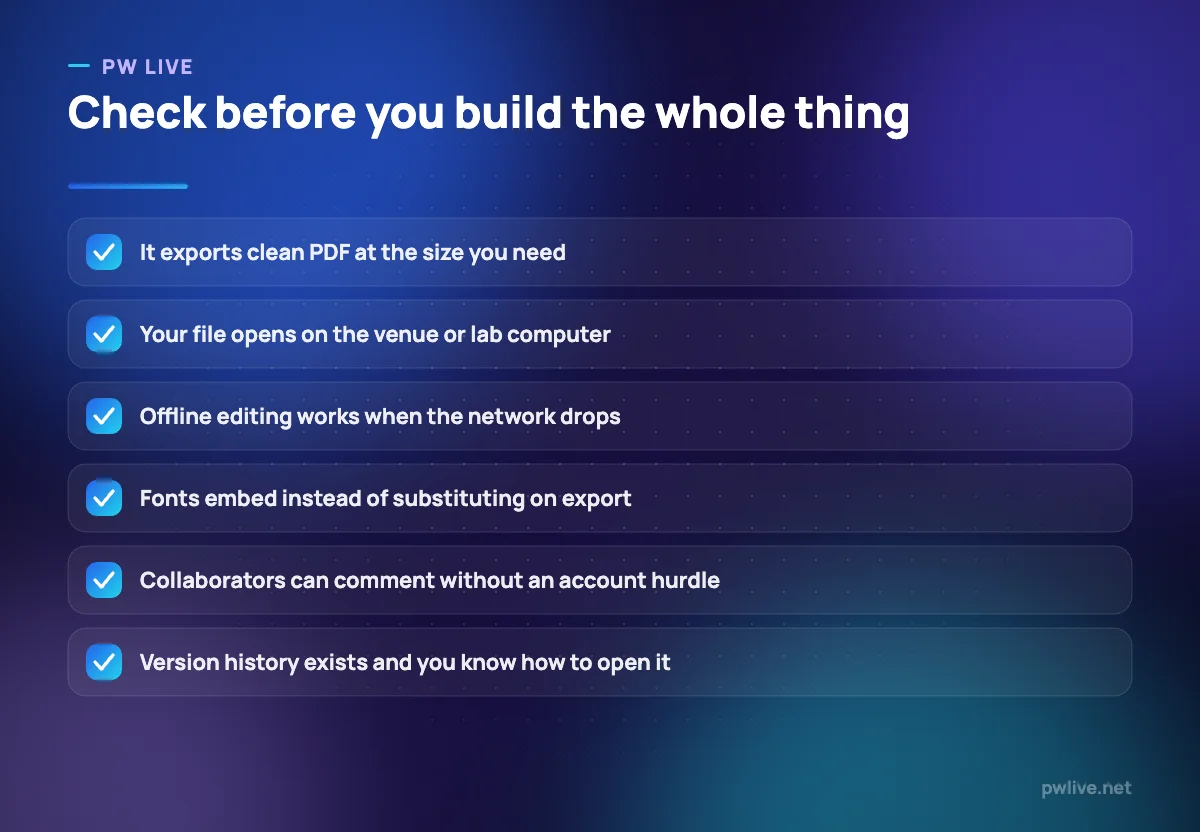
Test these on a small file before you build the real one.
- PDF export quality. Open the exported PDF on a different device. Check fonts, image sharpness and page size.
- Font embedding. If fonts are substituted on export, your careful layout falls apart on someone else’s machine.
- Offline access. Can you keep editing when the connection drops mid-session?
- Real page sizes. For print, you need exact dimensions in millimetres, plus bleed if a printer asks for it.
- Collaboration friction. Can a teammate comment without creating an account or installing anything?
- Export freedom. Can you get the source file out, not just a picture of it?
Check current free limits yourself on the day you decide. They move often, and any list of them is out of date within months.
Documents: structure first, formatting last
Most students format as they write, then lose an hour when a heading changes.
Do it in this order:
- Write the content as plain text with the headings in place.
- Apply built-in heading styles rather than manually bolding and resizing.
- Generate the table of contents, page numbers and cross-references from those styles.
- Format once, at the end.
Styles are the single highest-return feature in any word processor. They give you an automatic contents page, consistent spacing and a document you can restyle in seconds. For anything you send outside your institution, our guide to invoices, quotes and contracts covers the details that matter more than the design.
Presentations: fewer slides, larger type
A presentation is a performance aid, not a document. If the slide can be read as a report, it will be read instead of you.
- One idea per slide, expressed as a short sentence rather than a label.
- Type large enough to read from the back row. If in doubt, go bigger.
- Put your detail in the speaker notes, where it belongs.
- Build charts from real data and label them directly, so nobody has to decode a legend.
- Export a PDF backup and carry it, because presentation files still break on unfamiliar machines.
Sending slides to be read rather than presented? Add a short text summary at the top of each slide, or send a document instead.
Posters and one-page graphics
Posters fail for predictable reasons: too much text, too many typefaces, and images that look fine on screen and pixelated at A1.
Work to these constraints.
- Set the exact print size before you start. Resizing later distorts everything.
- Use images at print resolution. A web-sized image enlarged to poster scale will look soft.
- Limit yourself to two typefaces and three colours. Consistency reads as competence.
- Leave real empty space. Margins and gaps do more for legibility than any decoration.
- Print one test page at actual size before ordering the full thing.
Our guide to free design tools goes deeper on layout and brand basics, and the design and creativity skill track covers the underlying craft.
Habits that stop files breaking
- Name files with a date and version:
physics-report-2026-03-14-v2beatsfinal final. - Export a PDF at every milestone, so you always have a readable copy of something.
- Keep the source file and the PDF together in the same folder.
- Compress images before inserting them if the file is getting heavy.
- Back the folder up. Follow the routine in how to back up your notes so a lost laptop is an inconvenience, not a disaster.
Whatever you produce, learn to handle the resulting PDF properly: merging, splitting, compressing and filling forms are covered in PDF tools every student should know. More tool guides sit in the apps and tools category.
Key takeaways
- Choose the tool family from the output: flowing document, live slides or fixed poster.
- Free cloud suites, open-source suites and template design tools cover nearly every need.
- Test PDF export, font embedding and offline editing before building the real file.
- Use heading styles in documents; put detail in speaker notes, not on slides.
- Set exact print dimensions and use print-resolution images for posters.
- Verify current free limits yourself, and always keep a PDF backup.
Frequently asked questions
Do I need to pay for an office suite as a student?
Usually not. Free cloud suites and open-source desktop suites handle standard coursework, and many institutions provide licences already, so check with your college before buying anything.
Why does my document look different on someone else’s computer?
Almost always fonts or software versions. Export to PDF before sharing, and only send the editable file when the other person needs to edit it.
What size should a conference or society poster be?
Ask the organisers for the exact size and orientation before you design, then set that as your canvas from the start rather than scaling at the end.
Can I use a design tool for a long written report?
You can, but it will be slow and painful. Design tools have no automatic contents page, page numbering or reference handling, so use a word processor or a typesetting system instead.
Keep learning with PW Live
Browse every guide in Apps & Tools, or pick a skill track and follow the roadmap step by step.




Leave a Reply