

Nearly every piece of study material you receive arrives as a PDF, and knowing a handful of PDF tools for students saves hours of retyping, re-scanning and emailing files that will not send.
The format is deliberately fixed. That is its strength for sharing and its frustration when you need to change something.
This guide covers the operations that actually come up, how to tell which kind of PDF you are holding, how to choose tools safely, and the mistakes that quietly corrupt files before a deadline.
The two kinds of PDF, and why it matters
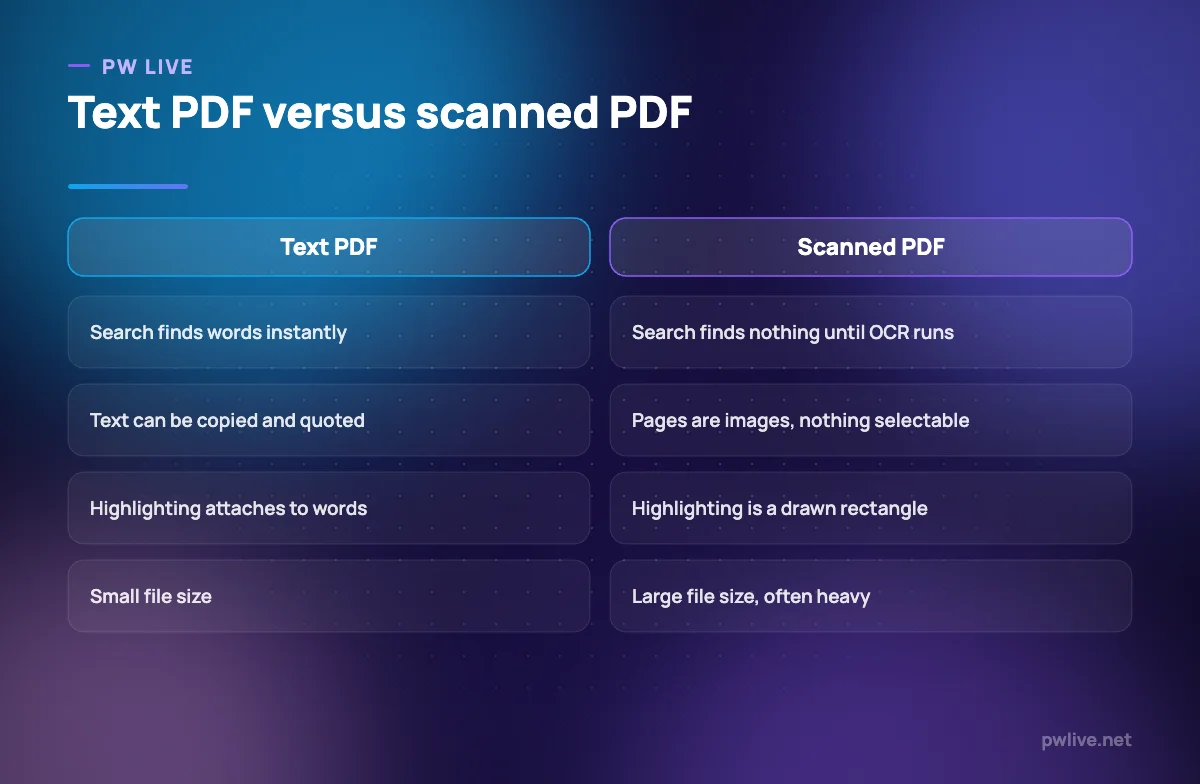
Open a PDF and try to select a sentence. If the text highlights word by word, it is a text PDF. If nothing selects, it is a scanned PDF, which is a stack of photographs in a PDF wrapper.
Almost every problem people have with PDFs traces back to not knowing which one they have.
Text PDFs are searchable, copyable, small and easy to annotate meaningfully. Scanned PDFs are none of those things until you run optical character recognition, or OCR, which reads the images and adds an invisible text layer underneath.
If you scan lecture handouts or borrowed notes with a phone, run OCR at the point of scanning. It costs seconds then and saves an evening of hunting later.
The operations worth knowing how to do
You will use roughly eight, and most tools handle all of them.
- Merge. Combine chapter files, or a scanned form with a covering letter, into one submission.
- Split and extract. Pull ten relevant pages out of a 400-page book file so your revision folder stays usable.
- Reorder, rotate and delete pages. Fixes upside-down scans and stray blank sheets.
- Compress. Reduce file size for portals with upload limits.
- Annotate. Highlight, underline and add comments.
- OCR. Make scanned pages searchable.
- Fill and sign forms. Type directly into fields instead of printing and rescanning.
- Convert. To and from documents, images and slides, accepting that layout may shift.
Conversion is the least reliable of the eight. A PDF converted to a document almost never comes back looking identical, so treat conversion as a starting point for editing, not a faithful copy.
Where to find these tools
There are four places, and the right one depends on the file.
- Built into your device. Phone and desktop operating systems can already view, annotate, rotate and often sign. Free, offline, private.
- Your browser. Modern browsers open, print and print-to-PDF, which is the fastest way to save a web page or convert almost anything.
- Desktop applications, including open-source ones. Best for anything sensitive, large or repeated, because nothing leaves your machine.
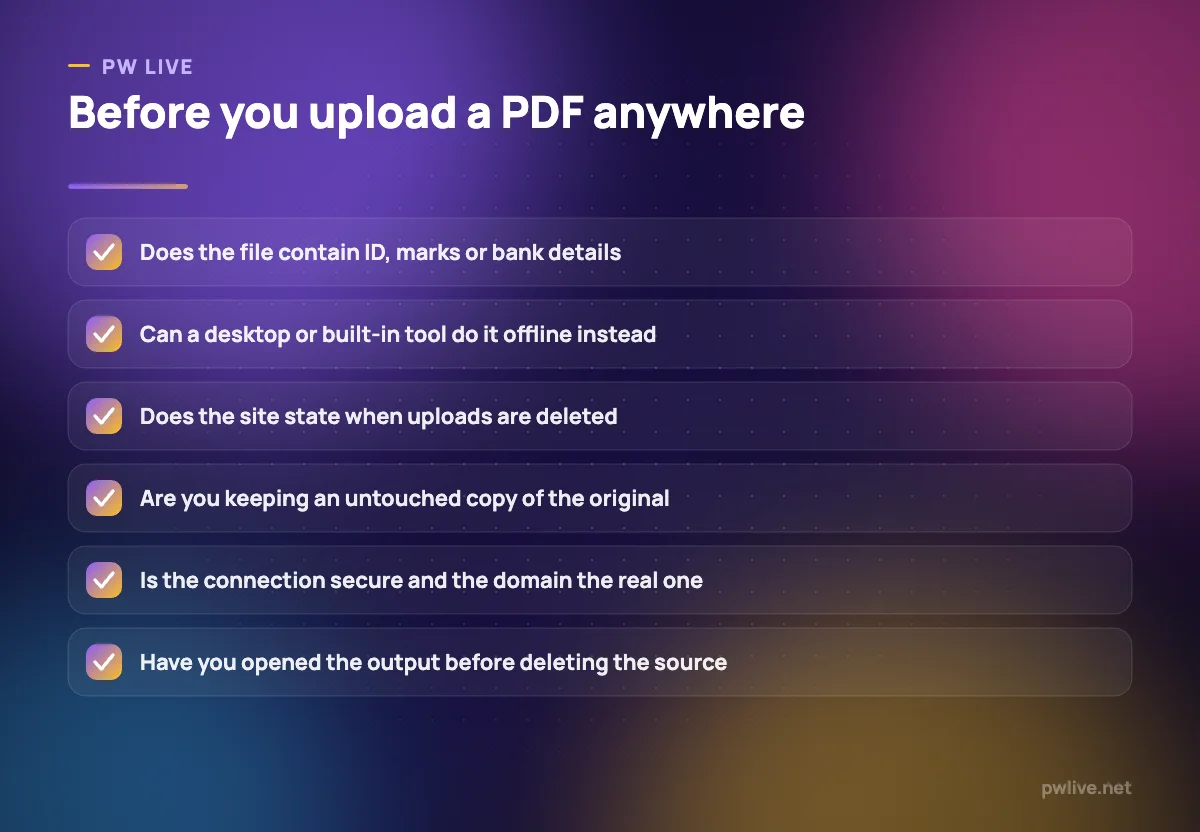
- Online converters. Convenient, but every file you use them on is uploaded to a stranger’s server.
Use offline tools by default and online ones only for files you would not mind losing. Never upload a document containing identity numbers, bank details, marksheets or signed contracts to a free converter. Our guide to what apps collect and how to take control explains why that habit matters beyond PDFs.
Compare current tools yourself before installing anything, and prefer well-known open-source projects or your platform’s built-in features over a search result advertisement.
How to annotate PDFs so the notes are useful
Highlighting feels like studying and usually is not. Colour applied to half a page tells you nothing on the second read.
A better system:
- Use one colour for definitions, one for things you did not understand, and nothing else.
- Add comment notes in your own words, because a comment forces a sentence and a highlight does not.
- Keep a question note on page one listing what you still cannot answer.
- Extract the comments into your notes app afterwards, since most annotation tools can produce a summary of them.
The extraction step is the one people skip, and it is the one that converts reading into revision. Combine it with the approach in taking notes you will actually revise, and for formula-heavy subjects feed the results into a formula and revision notebook.
Fixing the problems that come up before deadlines
- File too large to upload. Compress it, or export at a lower image quality. If it is a scan, reducing resolution usually helps most.
- Pages upside down or out of order. Rotate and reorder before doing anything else, so the fix survives merging.
- Cannot type in a form. It is probably a flat scan, not a form. Use a tool that adds text boxes on top, or print, fill and rescan.
- Fonts look wrong when others open it. Re-export with fonts embedded from the original document rather than editing the PDF.
- Password-protected file you own. Open it with the password you were given and re-save an unprotected copy for your own use. Do not attempt to bypass protection on material you have no right to.
- Blurry scan. Rescan in better light with the page flat, rather than trying to sharpen it afterwards. Phone scanning apps that detect edges and flatten pages help a lot.
Respect copyright when you split or share course material. Extracting pages for your own study is normal; redistributing a purchased book is not.
Build a filing habit around your PDFs
The tools only pay off if you can find the file.
- Name files as
subject-topic-source-date, so search works without opening anything. - Keep one folder per subject, with a
rawsubfolder for untouched originals and aworkingone for annotated copies. - Never annotate the only copy. Duplicate first, always.
- Export a merged, annotated revision file at the end of each term and archive it.
- Back the whole folder up, using the routine in how to back up your notes.
The same discipline applies to documents you send out, from a resume to an invoice, as covered in our guide to invoices, quotes and contracts. Send PDF, keep the source, and check the export before it goes.
More tool guides sit in the apps and tools category and in the productivity skill track, and our overview of free tools for presentations, posters and documents covers what produces these files in the first place.
Key takeaways
- Check whether a PDF is text or scanned before anything else; OCR fixes the second.
- Learn eight operations: merge, split, reorder, compress, annotate, OCR, fill, convert.
- Prefer built-in and offline tools; never upload sensitive documents to free converters.
- Annotate with two colours and written comments, then extract them into your notes.
- Duplicate before annotating and keep untouched originals in a separate folder.
- Name files consistently so search finds them without opening each one.
Frequently asked questions
How do I make a scanned PDF searchable?
Run OCR on it, either in a desktop PDF tool or with a phone scanning app that offers it during capture. The pages look the same but gain a hidden text layer you can search.
Is it safe to use free online PDF converters?
For ordinary study material, usually yes; for anything containing identity, financial or signed information, no. Assume every uploaded file sits on someone else’s server for an unknown period.
Why does my PDF look different after converting it to a document?
PDF stores fixed positions rather than a flowing layout, so converters have to guess at structure. Edit the original source file wherever it still exists instead of converting back and forth.
How do I reduce a PDF below an upload size limit?
Compress it first. If that is not enough, lower the image resolution, remove unnecessary pages, or split the submission into the parts the portal actually requires.
Keep learning with PW Live
Browse every guide in Apps & Tools, or pick a skill track and follow the roadmap step by step.





Leave a Reply