

Automation for non-programmers is no longer a contradiction. Most of the repetitive work in a normal week can be handed to software using tools built for people who have never written a line of code.
The hours disappear in small, invisible places. Copying details from an email into a spreadsheet. Renaming and filing attachments. Sending the same reminder. Chasing the same three people. None of it takes long individually, which is exactly why it never gets fixed.
This guide covers how to spot which tasks are worth automating, the three building blocks every automation uses, what you can set up today inside tools you already have, and how to stop your automations breaking quietly.
What counts as automation
Automation is any arrangement where a computer performs a task that you would otherwise do by hand, without you starting it each time.
That covers far more than the software category with “automation” in its name:
- A filter that labels and files incoming mail before you see it
- A template that fills a document from a form response
- A spreadsheet formula that recalculates a summary as data arrives
- A recurring calendar event that creates its own agenda
- A rule on your phone that silences notifications during study hours
The common ingredient is that the decision is made once and applied many times. That is the real saving. Not the minutes, but the attention you stop spending on deciding.
Good candidates share three properties: the task repeats, the steps are the same every time, and the rules can be written down clearly. If you cannot write the rule as a sentence, you cannot automate it yet.
Find the tasks actually worth automating
Do not start with the tool. Start with a week of observation.
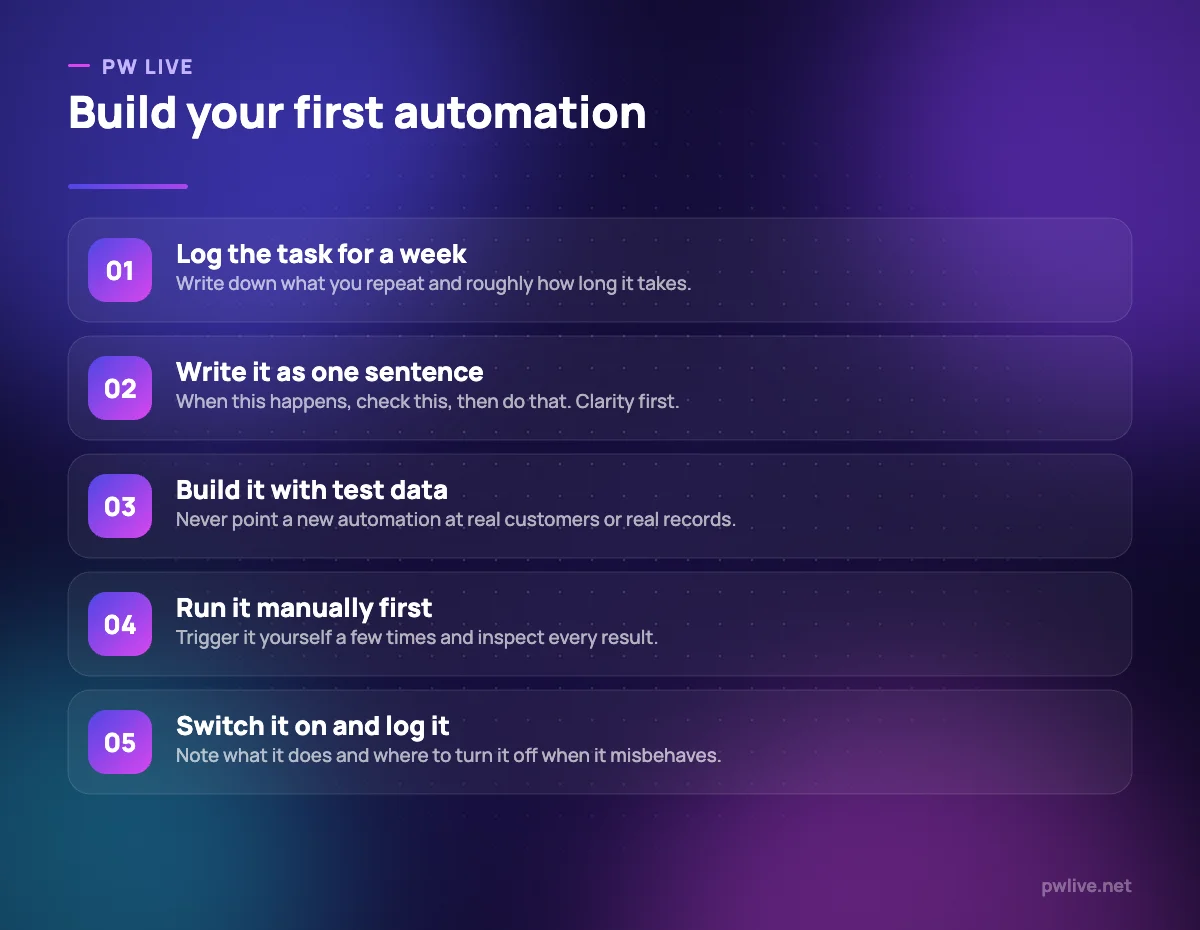
For five working days, keep a running note of anything you do more than twice. You do not need timings to the minute; a rough sense is enough. At the end of the week you will have a list, and the list is almost always surprising.
Then score each item on three questions:
- How often does it happen? Daily beats monthly by a wide margin.
- How long does each instance take, including the mental switch? Interruptions cost more than the clock suggests.
- How stable are the rules? A task whose rules change every month will need constant maintenance.
Automate the top of that list first. Ignore anything that happens rarely, however annoying it is. A two-hour build to save four minutes a year is a hobby, not a saving.
One more filter: avoid automating anything with serious consequences until you trust the setup. Sending money, deleting records, and messaging customers all deserve a manual confirmation step at first. This pairs well with the review discipline in the weekly review habit, where you check what your automations actually did.
The three building blocks
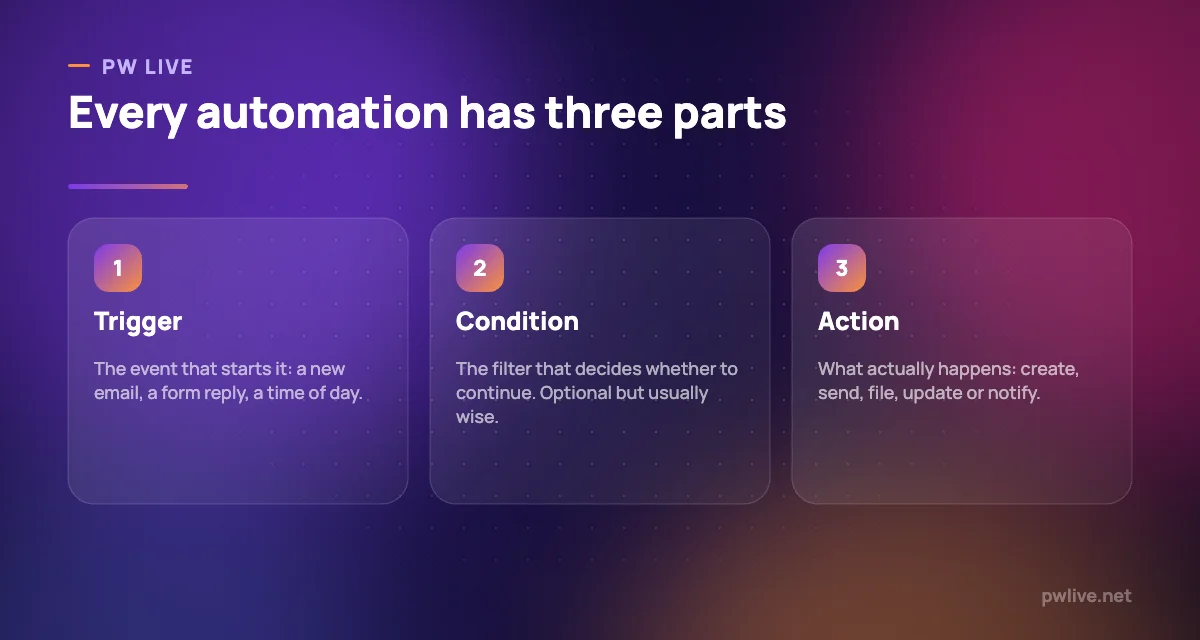
Every automation platform, whatever the interface looks like, is built from the same three ideas.
The trigger starts things. It is either an event (a new file appears, a form is submitted, an email arrives with a particular label) or a schedule (every morning at eight, every Monday, the first of the month).
The condition filters. Only continue if the amount is above a threshold, if the sender is on your list, if the field is not empty. Conditions are what separate a useful automation from one that fires constantly and gets muted.
The action does the work. Create a record, send a message, move a file, update a row, generate a document, post a notification.
Chain these and you have a workflow. When a form is submitted (trigger), if the enquiry is about pricing (condition), create a task, add a row to the tracker and send an acknowledgement (three actions).
Writing your automation as that single sentence before you touch a tool is the highest-value thing in this article. Most failures are specification failures, not technical ones.
Automation already sitting inside your tools
Start here, because it is free, reliable and requires no new accounts.
Email. Rules and filters can label, archive, forward and sort automatically. A single rule that files newsletters and receipts out of your inbox saves a genuine chunk of attention each day. Templates or canned responses handle the messages you write repeatedly.
Calendar. Recurring events, automatic booking links that respect your working hours, and default reminders remove an entire category of back-and-forth scheduling messages. Our guide to using a calendar app as your study planner covers building this into a routine.
Documents and forms. A form that writes into a spreadsheet is automation. So is a document template that pulls names, dates and amounts from that spreadsheet instead of being retyped.
Spreadsheets. Formulas, conditional formatting and pivot summaries mean a report updates itself as data arrives. This is the most underrated automation available to most people, and using spreadsheets for study planning and budgeting is a practical starting point.
Your phone. Both major mobile platforms include a shortcuts or routines feature. Focus modes that switch on during study blocks, a routine that sets your alarm and silences notifications, a shortcut that logs an expense in two taps.
Your files. Automatic backup and sync, and a consistent naming convention applied by a rule rather than by memory. Combine with the approach in how to back up your notes.
Connecting different apps without code
When a task spans two services, you need something in the middle. This is the category usually described as no-code automation: you pick a trigger in one app, map the fields, and choose actions in another.
These platforms handle the technical connection for you, but understanding the underlying idea helps enormously when something breaks. They are making API calls on your behalf, which our plain-English explanation of what an API is unpacks.
What to look for when choosing one:
- Does it connect the specific apps you use? Not the categories, the actual services.
- How is it priced? Usually per task run per month, which can escalate faster than you expect on a busy trigger.
- Can you see run history? Without a log, debugging is guesswork.
- Does it retry failures, and does it tell you when something failed?
- How is access granted and revoked? You are handing it permission to act in your accounts.
That last point deserves care. Connecting an automation platform to your email or file storage grants real access. Review those permissions periodically, as described in how to keep your accounts safe.
Keeping automations from breaking quietly
The dangerous failure is not the automation that stops. It is the one that keeps running while producing wrong results, silently, for weeks.
Six habits prevent almost all of it:
- Build and test with fake data. Never point a new workflow at live customer records.
- Add a notification on failure, so a broken run reaches you rather than a log nobody reads.
- Keep each automation small. One clear job. Long chains are hard to debug and fail in confusing ways.
- Document what exists. A single list of every automation, what it does, which accounts it touches and how to disable it.
- Put a human step before anything irreversible. Draft the message; do not send it. Flag the record; do not delete it.
- Review quarterly. Processes change and orphaned automations keep firing against rules that no longer apply.
For a business, add one more: do not build a critical process that only one person understands. If the person who built it leaves and nobody knows where it runs, you have created a liability, not an efficiency.
A realistic first week
Day one. Start the log of repeated tasks. Do nothing else.
Day two. Set up three email filters for the categories cluttering your inbox most.
Day three. Build one document or reply template you use weekly.
Day four. Set up a focus mode or routine on your phone tied to your study or work blocks. The approach in time blocking tells you when those blocks should be.
Day five. Pick the single most repeated item from your log, write it as a one-sentence trigger-condition-action, and build it in whichever tool already holds the data.
Weekend. Review what actually ran, and write down what each automation does and how to switch it off.
That is enough to reclaim real hours. Expand slowly from there, and browse the apps and tools section or the productivity skill track as you go.
Key takeaways
- Log a week of repeated tasks before choosing any tool. The list is the strategy.
- Every automation is a trigger, an optional condition and one or more actions.
- Start inside tools you already own. Email filters and spreadsheet formulas cost nothing.
- Write the automation as one plain sentence before building it.
- Test with fake data, and keep a manual step before anything irreversible.
- Document every automation and review them quarterly, or they will drift out of date.
Frequently asked questions
Do I need to learn to code to automate my work?
No. Email rules, calendar tools, spreadsheet formulas, phone routines and no-code platforms cover the majority of everyday tasks. Coding becomes worthwhile only when your needs outgrow what those tools express.
How much time will this realistically save?
That depends entirely on how much of your week is repetitive, which is why the observation log matters more than any estimate. Expect the first genuine savings from two or three small automations rather than one ambitious one.
What should I never automate?
Anything irreversible or sensitive without a human confirmation step: sending money, deleting records, and messages that go to customers or examiners. Automate the preparation and keep the final click.
My automation stopped working. Where do I start?
Check the run history first, since most platforms log exactly where a run failed. The usual causes are an expired connection to an account, a renamed field or column, and a change in the source app’s format.
Keep learning with PW Live
Browse every guide in Technology & Software, or pick a skill track and follow the roadmap step by step.





Leave a Reply